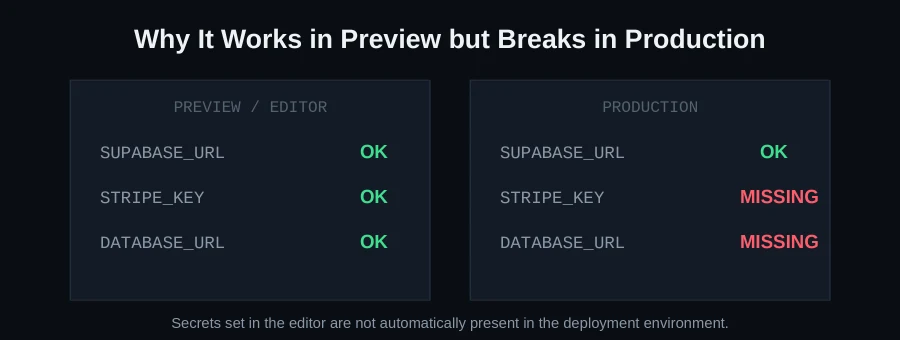
Bolt.new is built for fast, browser-first prototyping, and the in-browser preview is genuinely good at making a project feel finished. The problem is that "it works in the Bolt preview" and "it works in production" are two different environments with different rules — and the gap between them is where most deploy failures come from.
Rule one: test the actual production build, not the dev server
This is the single highest-leverage habit: in Bolt's terminal, run the real build command (npm run build) before you deploy anything. If it fails there, fix it there — don't push a broken build to production and debug it live. The dev server is more forgiving than a production build step, and will happily run code that the build process will reject.
The most common specific causes
1. Missing environment variables
A single missing environment variable can cause the entire build to fail silently, or produce a deploy that builds fine but crashes the moment it runs, because something it depends on is undefined. Set every required variable directly in your hosting platform before deploying — don't assume anything configured inside Bolt carries over automatically.
2. TypeScript errors the dev server quietly ignores
The dev server sometimes lets type errors through that the production build step catches and fails on. Run npx tsc --noEmit locally to surface every type error before you deploy, rather than discovering them from a failed build log.
3. Case-sensitive import paths
Bolt.new-generated code sometimes has import paths with inconsistent casing — Button vs button, for instance — that work fine on macOS (case-insensitive by default) but fail hard on Linux build servers, which are case-sensitive. This produces a build failure that looks bizarre if you're testing on a Mac and deploying to Linux, which is the default for nearly every hosting platform.
4. Bundler/output configuration issues
If your build fails after environment variables and dependencies are confirmed correct, the remaining suspects are usually deeper: missing dynamic import handling, an incorrect output directory, or a misconfigured framework adapter. These require reading the full Vite (or equivalent) build output rather than guessing from a one-line error.
A practical pre-deploy checklist
- Run
npm run buildlocally and confirm it completes with no errors - Run a type-check pass and resolve everything it flags
- Confirm every environment variable your app reads is set in your hosting platform, not just locally
- Check import paths for casing consistency, especially anything added or renamed recently
- Deploy to a staging URL first if your host supports it, and smoke-test the actual production build before pointing your real domain at it
Reading a build failure log without panicking
A failed production build log can look intimidating — often dozens of lines, with the actual root cause buried somewhere in the middle rather than at the very end. A practical approach: scroll to the first error, not the last. Build tools frequently cascade — one real failure causes a string of downstream errors that are really just consequences of the first one. Fixing the first error and re-running the build often makes several of the "other" errors disappear on their own.
Environment variables: the most common single point of failure
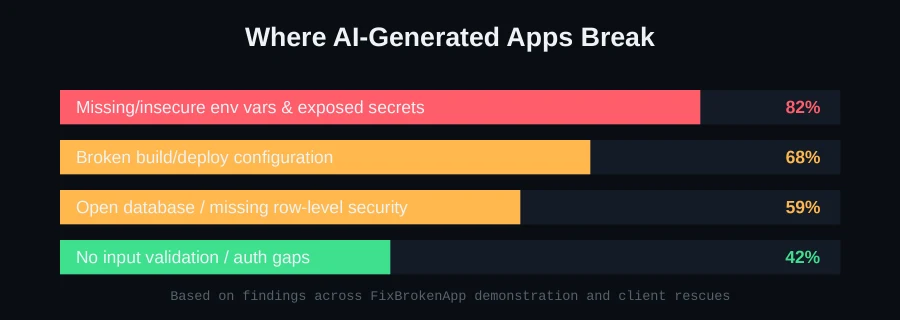
It's worth going deeper on this one specifically because it's the cause we see most often. A few concrete checks:
- List every place your code reads an environment variable (search for
import.meta.envorprocess.envacross your codebase) and cross-reference against what's actually configured in your hosting platform's dashboard. - Check for typos in variable names — a variable set as
SUPABSE_URLinstead ofSUPABASE_URLfails silently in exactly the way that's hardest to spot by eye. - Confirm whether your framework requires a specific prefix for client-exposed variables (
VITE_for Vite-based projects) — a variable missing the required prefix will beundefinedin the browser even if it's correctly set on the server.
Why "it built once, then failed later" is especially confusing
Sometimes a project deploys fine, then a later deploy of the exact same code fails. This almost always means something in the environment changed, not the code — a dependency was updated upstream (if you're not using exact version pinning), a hosting platform changed a default, or an environment variable that was manually set once got lost during a redeploy. The fix is to lock dependency versions explicitly and treat environment configuration as part of your project's source of truth, not a one-time manual setup step you did once and forgot about.
Debugging the "works on my machine" bundler issues
When environment variables and TypeScript errors are both ruled out and the build still fails, the remaining causes tend to live in how your bundler resolves imports and outputs files. A few things worth checking specifically: whether any dynamic imports (import() calls used for code-splitting) reference paths that don't resolve correctly in a production build context, whether your configured output directory actually matches what your hosting platform expects to serve from, and whether a framework-specific adapter (for deploying Next.js, Remix, or similar frameworks to a specific host) is present and correctly configured.
The case-sensitivity trap, explained in more detail
This one deserves extra attention because of how confusing it is to debug the first time you hit it. macOS's default filesystem is case-insensitive but case-preserving — which means import Button from './button' and a file actually named Button.tsx will resolve correctly on a Mac, because the filesystem treats button and Button as the same file. Nearly every Linux-based build server (which is the overwhelming majority of hosting platforms) uses a case-sensitive filesystem, where that same import fails outright because button and Button are genuinely different, and only one of them exists. The error you'll see is usually a blunt "module not found," which doesn't obviously suggest a casing issue — it looks like a missing file, which is technically true, just not for the reason it appears.
The fix, once you know what to look for, is straightforward: search your imports for any path that doesn't exactly match the casing of the actual file on disk, correct the import (not the filename, unless the filename itself is inconsistently cased across your project), and re-test. This is also a good argument for testing your production build inside a Linux environment (a Docker container, or a CI runner) even if your daily development happens on macOS or Windows — it surfaces exactly this class of bug before a real deploy does.
What "read the full build output" actually means in practice
When a build fails and the error isn't immediately clear, resist summarizing or skimming the log — copy the entire output, including the lines before and after the actual error message. Build tools frequently print useful context (which file was being processed, which plugin was active) several lines before the error itself, and that context is often the difference between "TypeError: cannot read property of undefined" being meaningless versus pointing you directly at the specific import or config line responsible.
Setting up a repeatable pre-deploy routine
The checklist earlier in this guide is most useful when it's not something you have to remember to do manually every time — wiring it into a CI pipeline (even a minimal one) that runs the build and type-check automatically on every push means a broken build gets caught the moment it's introduced, not discovered later during an actual deploy attempt. For a Bolt.new project without existing CI, even a simple GitHub Actions workflow that runs npm ci && npm run build on every push is enough to catch the majority of the issues covered here before they reach a real deployment.
When "it deployed but looks wrong" isn't actually a build failure
A successful build that renders incorrectly — missing styles, broken layout, images that don't load — is a different problem from a failed build, and worth distinguishing. This usually points to asset path issues (stylesheets or images referenced with a path that's correct in development but wrong once deployed under a different base path) rather than anything covered above. Checking your browser's Network tab for 404s on CSS or image requests specifically will usually confirm this quickly.
When the build error genuinely doesn't make sense
Sometimes you've done all of the above and the build still fails with something cryptic. That's usually a bundler-level issue that needs someone to actually read the full stack trace rather than pattern-match against a common-issues list. This is exactly the kind of problem we resolve on our Bolt.new rescue page — send your project on WhatsApp for a free scan and we'll tell you precisely what's broken before you pay for anything.
FAQ
Why does my app work perfectly in the Bolt preview but not after I deploy it?
The Bolt preview runs in a more forgiving environment than most production hosts — it's closer to a dev server than a real production build. Always test the actual build output, not just the preview, before trusting it's ready.
Is this specific to Bolt.new, or does it happen with other AI builders?
The dev-vs-production gap is common across browser-first builders — Replit and v0 have very similar failure patterns. See our guides for Replit and v0 if either applies to you.
Should I pin exact dependency versions or use version ranges?
For anything close to production, pin exact versions (or commit your lockfile and make sure your deploy process actually uses it) rather than relying on version ranges — this is what prevents "it worked yesterday, it doesn't today" without any code changes on your end.
How do I test a production build locally before deploying?
Run your framework's build command (typically npm run build), then serve the output locally with a static server or your framework's own preview command, and click through your app the same way a real user would — don't rely on the dev server as a stand-in for this step.