
A blank white screen is the single most common support request we see from Lovable users, and it's genuinely one of the more stressful bugs to hit — there's no error message on the page, just... nothing. The good news: a blank screen almost always means one specific thing — a JavaScript error crashed the render before anything could paint — and there are a small number of usual suspects behind it.
Why React shows nothing instead of an error
React's default behavior is to unmount the entire component tree when an unhandled error occurs during render. That's a deliberate safety choice (better a blank page than a half-broken UI), but it means the actual error is hidden from you unless you go looking for it. A blank preview almost always means the build failed or the app threw on render — the fix is reading the first error, not guessing.
Step 1: Open the browser console
This is the step that skips 90% of the guesswork. Open your deployed site, then DevTools (F12 or right-click → Inspect) → Console tab. The first red error line is almost always the actual cause. Common messages you'll see:
Cannot read properties of undefined— something expected data that wasn't there (often a failed API call or missing env var)Failed to fetch dynamically imported module— a broken build output or wrong base path[supabase] Invalid URLor similar — a missing or malformed environment variable
The three most common root causes
1. Missing environment variables in production
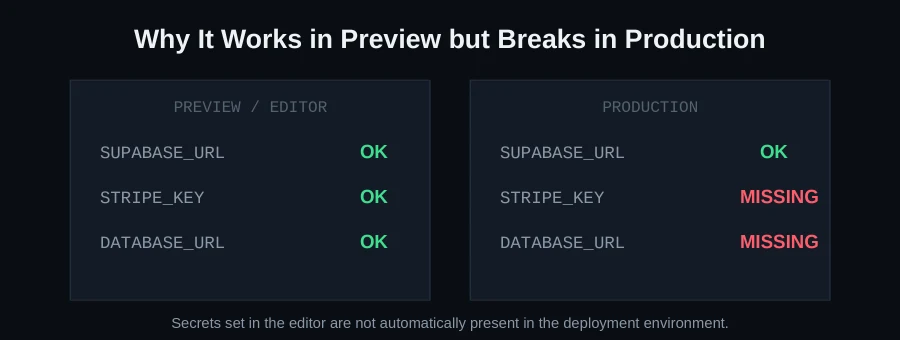
This is especially common when deploying — Lovable Cloud secrets that were available in the preview environment aren't automatically present wherever you actually deployed. If your app tries to initialize a Supabase client with an undefined URL, or calls an API with a missing key, it throws immediately on load, before anything renders.
Fix: list every environment variable your app reads (search your code for import.meta.env or process.env) and confirm each one is explicitly set in your hosting platform's environment settings — not just in Lovable's own preview config.
2. AI-edited Vite configuration breaking the build
When Lovable's AI modifies the Vite configuration — adding plugins, changing the base path, introducing security headers — it can accidentally break how the build bundles JavaScript. The result: built files fail to load or load from the wrong path, which looks identical to a blank screen from the outside.
Fix: diff your vite.config.ts against a known-working version, paying particular attention to the base path and plugin order, and rebuild.
3. Runtime JavaScript errors from undefined data
Undefined variables, failed component imports, or dependency version conflicts are the classic causes of a component throwing during render. This is especially common right after an AI-generated change that assumed an API response shape that turned out to be different from what the endpoint actually returns.
Two issues that look unrelated but hit at the same time
Supabase row-level security left wide open
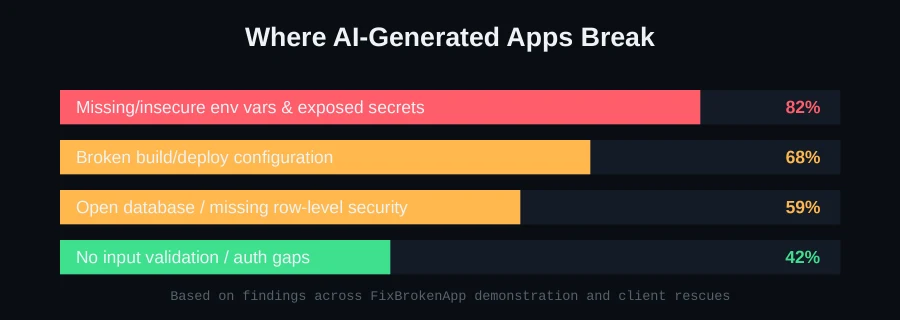
Not a cause of the blank screen, but something we find in nearly every Lovable project we audit: Supabase security rules left in permissive test mode, meaning your database is readable (and sometimes writable) by anyone with the anon key — which is already public in your frontend bundle by design. Fix this at the same time you're already in the codebase debugging the blank screen.
CORS errors calling Supabase from the deployed domain
If your console shows a CORS error rather than a render error, the fix is different — it's an allowed-origin configuration issue on the Supabase side, not a frontend bug.
A step-by-step diagnostic path, not just a list of suspects
Rather than guessing which of the causes above applies to you, work through this order — it's structured to find the answer fastest:
- Console first. Read the exact error message and note whether it mentions a specific variable, module, or network request.
- If it names an environment variable or "undefined URL" — go straight to your hosting platform's environment settings and confirm every variable your app reads is actually present there, not just in Lovable's local preview config.
- If it's a failed module import or "unexpected token" — this points to a build output problem. Check your
vite.config.tsfor recent AI-driven changes to the base path or plugins. - If it's a CORS error specifically — this isn't a render crash at all, it's an API configuration issue. Skip the render-debugging steps entirely and go straight to your Supabase (or other backend) allowed-origins settings.
- If none of the above and the error references your own component code — this is a genuine application bug (an undefined variable, unhandled null case), and needs a normal debugging pass on that specific component.
Why Lovable projects hit this more than hand-built React apps
It's not that Lovable's output is lower quality — it's that the speed of iteration means environment configuration and error handling get less deliberate attention than they would in a project built more slowly by a developer who's thinking about production from day one. A human developer setting up a new React + Supabase project typically configures environment variables and error boundaries early, almost as a reflex. An AI builder optimizing for "working demo in the shortest number of prompts" doesn't have that reflex unless it's specifically part of the request — and most people don't think to ask for it, because until you hit a blank screen, you don't know it was missing.
Setting up error boundaries so this never happens silently again
A React error boundary component can catch render errors and show a helpful message instead of a blank screen — turning "nothing" into "here's what actually broke." If your Lovable project doesn't have one, it's a small, high-value addition: wrap your top-level app component in an error boundary that logs the error somewhere you'll see it (even just the browser console with a clear label) and renders a fallback UI instead of unmounting everything silently.
A closer look at the Vite config problem specifically
This one is worth walking through in more detail because it's uniquely hard to spot without knowing to look for it. Lovable's AI will sometimes modify vite.config.ts as a side effect of an unrelated request — adding a plugin to support a new feature, adjusting the base path while working on routing, or introducing a security header while addressing something else entirely. Each of these changes is individually reasonable, but the cumulative effect can be a build configuration that no longer matches your actual deployment target. A base path set for a subdirectory deployment, for instance, will silently break asset loading if you're actually deploying to your domain's root — every asset request resolves to the wrong URL, the browser gets 404s for your JS bundle, and the page renders blank because none of your application code ever actually loaded.
The fix isn't just reverting the config — it's understanding what the base path should actually be for your real deployment target, and confirming plugin order hasn't introduced a conflict (some Vite plugins are order-sensitive and behave differently depending on what runs before them).
Testing your production build locally before you ever deploy
The single most effective habit for catching all three root causes before they cost you a failed deploy: run your actual build command locally (npm run build), then serve the built output with a static file server and open it in your browser — not the Lovable preview, the actual built files. If it's going to be blank in production, it'll be blank here too, and you'll find out in thirty seconds locally instead of after a deploy.
Beyond the blank screen: what else to check while you're in there
Since you're already debugging, it's worth doing a broader pass rather than just patching the one crash:
- Confirm your Supabase row-level security policies are actually enabled and scoped per-user, not left in permissive test mode
- Check whether any Stripe or other payment API calls happen client-side instead of through a server-side endpoint
- Verify form inputs have real validation rather than accepting anything, which is a common gap in fast-generated forms
If you've checked all of this and it's still broken
Sometimes the console error points to something deep in a dependency or a subtle build-tool interaction that isn't a quick fix. That's exactly the kind of thing we resolve on our Lovable rescue page — send us your GitHub link or a zip export on WhatsApp and we'll run a free scan and tell you precisely what's wrong, the same process behind our real Lovable booking app rescue, where we found a payment secret key shipped to the browser and a booking system that let two people reserve the same slot — we fixed both, plus added real input validation, and took the project from a Launch Readiness score of 33 to 91 in 52 hours.
FAQ
My Lovable preview works but the deployed version is blank — why?
This is almost always environment variables — Lovable Cloud secrets available in preview aren't automatically present in your production deployment target. Check your hosting platform's environment settings specifically.
Is a blank screen a security issue?
Not by itself, but the underlying cause (a config or env-var problem) often sits alongside real security gaps like open Supabase rules, which is worth checking while you're already investigating.
Should I add error boundaries to every Lovable project?
Yes, it's a small addition that turns a confusing blank page into an actionable error message, and it costs almost nothing to add once and forget about.
How do I know if my Supabase RLS policies are actually working?
Test by querying your database using only the public anon key (not an admin/service key) and confirm you can only read/write the rows a real logged-in user should be able to access — if you can see everyone's data, your policies aren't scoped correctly.